
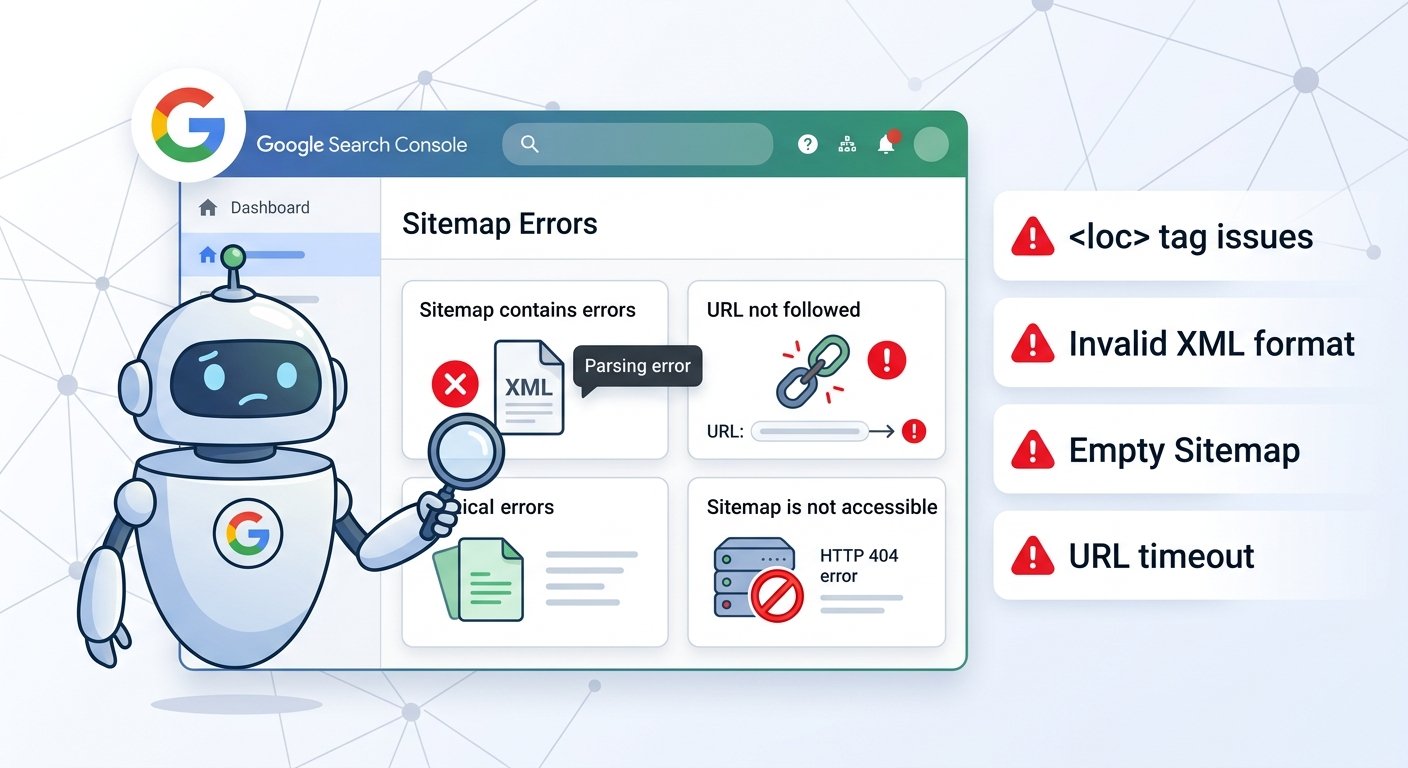
Introduction: The Sitemap Report Nobody Checks Until Something Breaks
Most site owners submit their sitemap once, see a green checkmark, and never open the Sitemaps report in Google Search Console again. That’s usually fine — until it isn’t. A CMS update, a plugin conflict, a migration, or a bad redirect rule can quietly break your sitemap months later, and the first sign is often a slow bleed in indexed pages rather than a dramatic error message.
This guide walks through the errors GSC actually shows in that report, in plain language, so you know exactly what’s wrong the moment you see it — and whether it’s a five-minute fix or something that needs a proper technical sitemap audit.
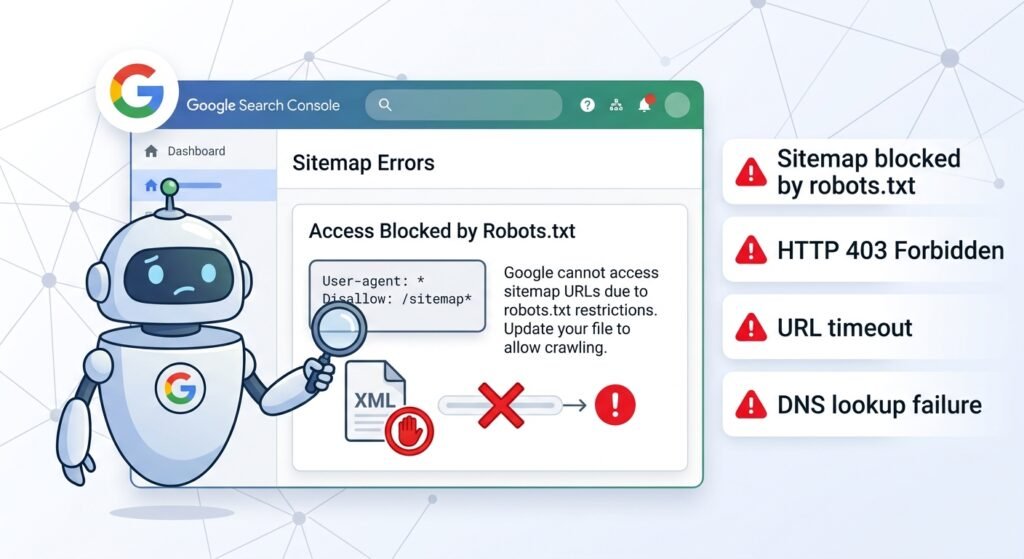
How to Find Your Sitemap Errors in GSC
Before the error list makes sense, know where it lives: Search Console → Sitemaps → click your submitted sitemap URL. GSC shows a status (“Success,” “Couldn’t fetch,” “Has errors,” or “Has warnings”) plus a breakdown of how many URLs were discovered versus how many were actually indexed. That gap — submitted vs. indexed — is often the first real clue something’s wrong, even before GSC flags an explicit error.
The Most Common XML Sitemap Errors, Explained
1. “Sitemap could not be read”
What it means: GSC tried to fetch your sitemap file and either got a non-200 HTTP response, a timeout, or content it couldn’t parse as valid XML.
Common causes: the file was deleted or moved, a security plugin is blocking Googlebot’s user-agent, the server returned a 403 or 500 instead of the sitemap, or the file exists but is genuinely malformed.
Quick check: open the sitemap URL directly in an incognito browser tab. If it doesn’t load cleanly for you, it won’t load for Googlebot either.
This error gets its own full breakdown, since it’s the most common single error we see across client sites — see our dedicated guide on fixing “sitemap could not be read” errors.
2. “General HTTP error”
What it means: the server responded, but not with a usable 200 OK status — commonly a 404 (file not found), 403 (forbidden), or 500 (server error).
Common causes: the sitemap URL in Search Console no longer matches where your CMS or plugin is actually generating it (very common after switching SEO plugins on WordPress), or a firewall/WAF rule is misidentifying Googlebot as a bot to block.
3. “Sitemap is HTML”
What it means: Google requested an XML file and got back an HTML page instead — usually your site’s custom 404 page or a login/redirect page, served with a 200 status even though it’s not the actual sitemap.
Common causes: the sitemap URL points to a page that no longer exists, and instead of returning a proper 404, your server or CMS redirects to a “soft 404” HTML page that returns 200. This is a frequent issue on Shopify and some WordPress setups after a theme or plugin change — see our Shopify-specific sitemap fix guide or WordPress-specific guide if this matches what you’re seeing.
4. “Namespace errors” / “Invalid XML”
What it means: the sitemap doesn’t conform to the XML sitemap protocol — a missing or incorrect <urlset> namespace declaration, unescaped special characters (like a raw & instead of &), or broken tag nesting.
Common causes: hand-edited sitemaps, custom scripts generating sitemaps without proper XML escaping, or a plugin bug. This one is usually invisible to a human skimming the file, but breaks parsing entirely for Google.
5. “Sitemap exceeds the maximum number of URLs” (50,000 URL limit)
What it means: a single sitemap file can list a maximum of 50,000 URLs (or 50MB uncompressed, whichever comes first). Large sites can hit this without realizing it, especially e-commerce sites with heavy pagination or faceted navigation generating thousands of URL variants.
Fix: split into a sitemap index file referencing multiple child sitemaps. Full walkthrough in our guide on splitting sitemaps that exceed the 50,000 URL limit.
6. “URL blocked by robots.txt”
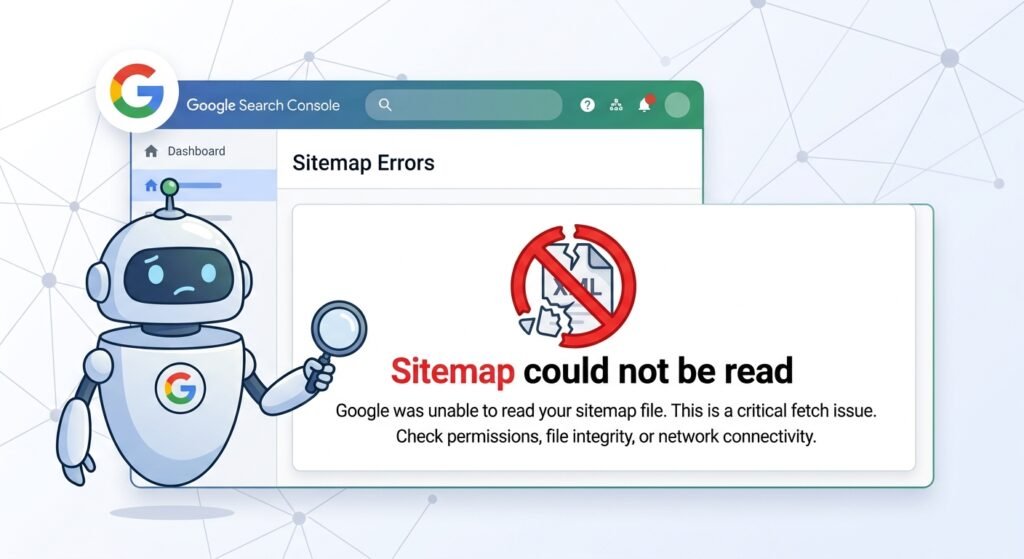
What it means: your sitemap lists a URL that your robots.txt file simultaneously disallows crawling on. This is a direct contradiction — you’re telling Google “please index this” and “please don’t crawl this” at the same time, and Google generally won’t index a page it’s blocked from crawling.
Common causes: a broad Disallow rule (like blocking an entire /tag/ or /category/ path) that was added after the sitemap was last regenerated, so the sitemap still lists URLs under that now-blocked path.
7. “URL marked ‘noindex'”
What it means: similar contradiction to the robots.txt issue above — a URL is listed in your sitemap (a signal to index it) but has a noindex meta tag or header on the page itself (a signal not to). Google will honor the noindex tag and skip it, but it’s wasted crawl budget and a sign your sitemap generation logic isn’t filtering correctly.
Why it matters more than it looks: on larger sites, this is rarely one or two stray URLs — it’s usually a systemic pattern (e.g., every filtered/paginated product page is noindexed but still auto-generated into the sitemap by your CMS). Worth reading alongside our piece on noindex pages quietly wasting crawl budget.
8. “Sitemap contains URLs which redirect”
What it means: a URL listed in your sitemap returns a 301 or 302 redirect instead of a direct 200 response. Google will follow the redirect, but it’s inefficient, and if you have many of these, it signals your sitemap is stale relative to your actual URL structure.
Common causes: a site migration, HTTP→HTTPS change, or URL slug update where the sitemap wasn’t regenerated afterward and still contains the old URLs.
9. “Compression error”
What it means: if you’re submitting a .gz compressed sitemap, GSC couldn’t decompress it — usually a malformed gzip file or an incorrect Content-Encoding header from the server.
Submitted vs. Indexed: The Gap That Doesn’t Always Show an “Error”
Here’s the part that catches most site owners off guard: GSC can report your sitemap status as “Success” while still indexing only a fraction of the URLs inside it. That’s not technically an “error” in the report — but functionally, it’s the same problem, and it’s the pattern we most often see on pages that are getting impressions without matching clicks. If your sitemap is clean but discovered-vs-indexed numbers are far apart, the issue usually isn’t the sitemap file itself — it’s crawl budget, content quality signals, or internal linking depth to those URLs.
When to Fix It Yourself vs. Bring in Help
Errors #2, #3, and #9 are usually quick server/hosting-level fixes. Errors #6, #7, and #8 typically point to a deeper mismatch between your CMS’s sitemap generation logic and your actual site rules — worth a full audit rather than a one-off patch, since the same root cause is often silently affecting URLs the report hasn’t flagged yet.
Get Your Sitemap Errors Diagnosed and Fixed
If GSC is flagging errors like these on your site — or your discovered-vs-indexed gap looks off even without an explicit error — it’s worth getting it properly diagnosed rather than guessing at a fix.
Get Your Sitemap Fixed We audit the sitemap, the robots.txt rules around it, and the CMS logic generating it — so the fix holds instead of resurfacing next month.