
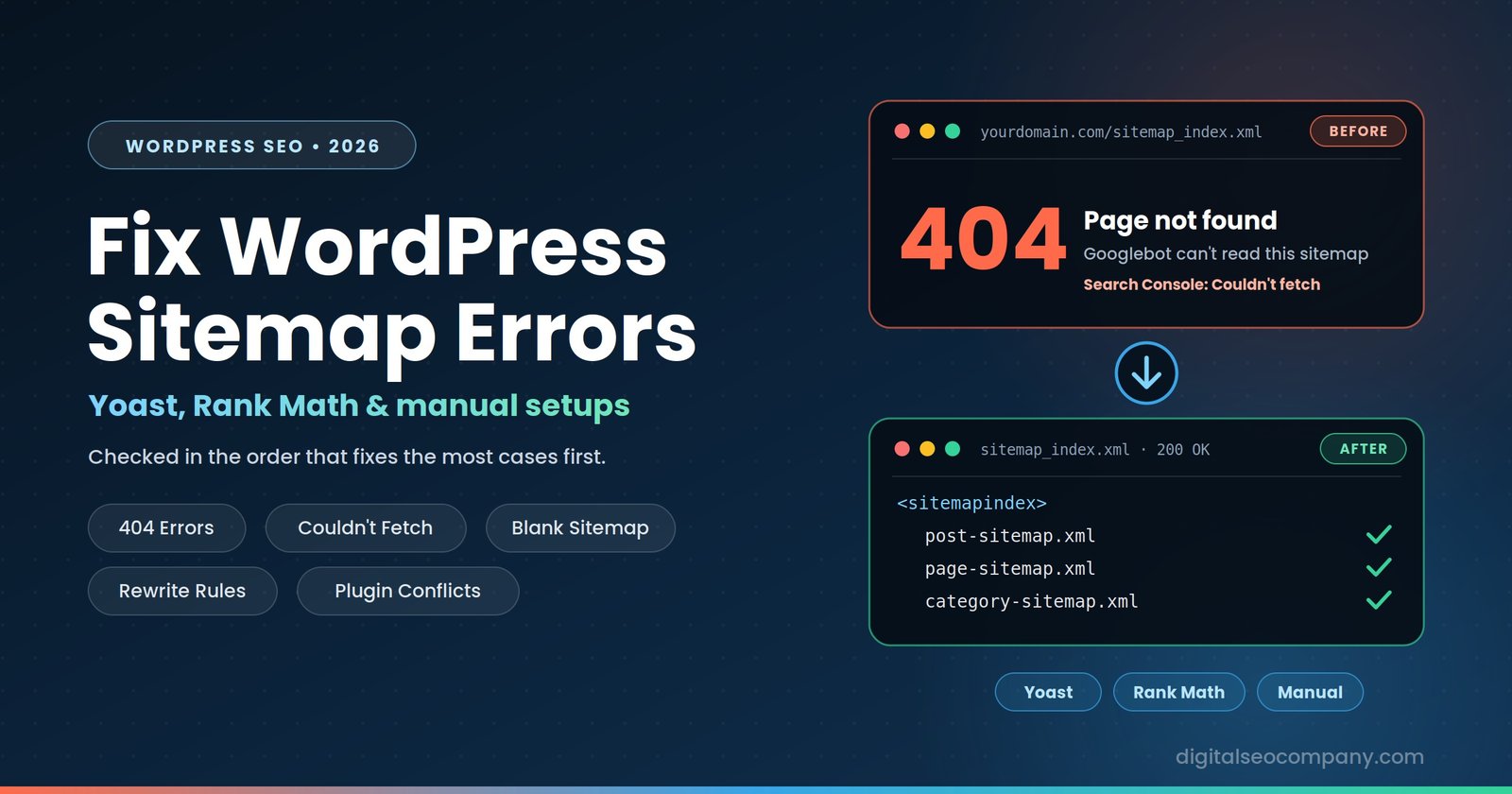
Most WordPress sitemap errors come from a short list of causes: stale rewrite rules, two SEO plugins competing for the same sitemap URL, a leftover static sitemap file, the sitemap feature switched off, a cache or firewall serving Googlebot the wrong thing, or stray output corrupting the XML. Almost all of them can be diagnosed in about ten minutes, and the majority are fixed by re-saving your permalinks or removing a duplicate plugin. This guide walks through the checks in the order that resolves the most cases fastest, then covers Yoast, Rank Math, and manual setups separately.
For a broader explanation of what each Search Console message means, see our guide to common XML sitemap errors in Google Search Console. This article is the WordPress-specific fix list.
Step 0: Know Which Sitemap You Should Be Testing
Half of all “sitemap not working” reports come from testing the wrong URL. Each source generates a different default:
| Source | Default sitemap URL |
|---|---|
| WordPress core (no SEO plugin) | /wp-sitemap.xml |
| Yoast SEO | /sitemap_index.xml |
| Rank Math | /sitemap_index.xml |
| All in One SEO | /sitemap.xml |
Open the URL in an incognito window. A working sitemap loads as XML — a list of links or sub-sitemaps — not your theme’s 404 page, a blank screen, your homepage, or a login page. Also confirm you’re logged out: a sitemap that works for you while logged in but fails for visitors usually points to caching or a firewall rule.
Match the Symptom to the Likely Cause
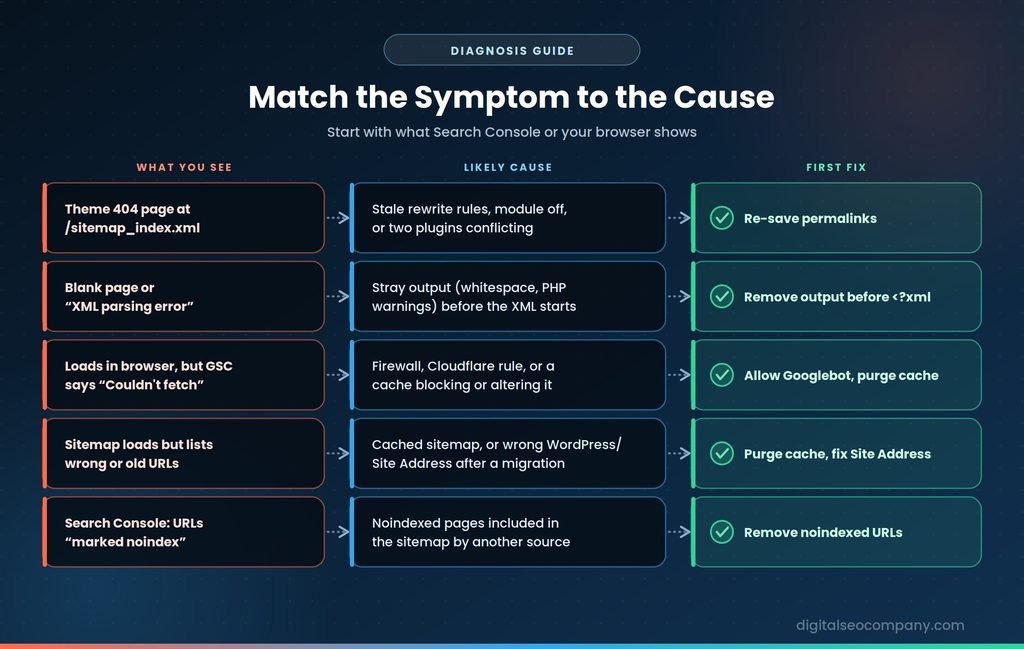
| What you see | Most likely cause |
|---|---|
Theme 404 page at /sitemap_index.xml | Stale rewrite rules, sitemap module off, or two plugins conflicting |
| Blank page or “XML parsing error” | Stray output (whitespace, PHP warnings) before the XML starts |
| Works in browser, but Search Console says “Couldn’t fetch” | Firewall, Cloudflare bot rule, or a caching layer blocking or altering the response |
| Sitemap loads but lists wrong or old URLs | Cached sitemap, or mismatched WordPress/Site Address after a migration |
| Search Console reports URLs “marked noindex” | Noindexed pages included in the sitemap |
The Fixes That Solve Most Cases
Work through these in order before touching plugin-specific settings.
1. Re-save your permalinks. Go to Settings → Permalinks and click Save Changes without altering anything. WordPress builds sitemap routes through rewrite rules, and when those go stale — often after a migration, a plugin switch, or an update — the sitemap URL returns a 404. This alone fixes the majority of 404s. If you have WP-CLI, wp rewrite flush --hard does the same job more thoroughly.
2. Make sure only one SEO plugin is active. Yoast, Rank Math, and All in One SEO each register their own sitemap routes. If you switched plugins and the old one is still active or left remnants, the rewrite rules can collide and neither wins cleanly. Fully deactivate the extra plugin, then flush permalinks again.
3. Look for a leftover static file. Check your site’s root folder (via FTP or your host’s file manager) for a real sitemap.xml or sitemap_index.xml file. A leftover from an old plugin or a previous setup can shadow the dynamic sitemap, and no amount of permalink flushing helps until it’s removed.
4. Confirm the sitemap feature is actually on. In Yoast: SEO → Settings → Site features → XML sitemaps. In Rank Math: the Sitemap module under Dashboard → Modules, plus Sitemap Settings. Toggling it off and on again also forces a rebuild.
5. Purge and exclude caches. Clear your caching plugin (WP Rocket, LiteSpeed Cache, W3 Total Cache) and CDN, then exclude sitemap URLs from caching so a stale copy isn’t served later.
6. Check firewalls and security tools. Cloudflare bot protection, security plugins, and host-level firewalls sometimes block Googlebot or treat XML requests as suspicious. Review firewall logs and allow your sitemap URLs through.
7. Check the URL basics. Under Settings → General, confirm the WordPress Address and Site Address are correct and use the right protocol (https) and the right www or non-www version. A sitemap listing http:// or staging-domain URLs after a migration is a common source of redirect and “page with redirect” errors in Search Console.
Yoast SEO: Specific Checks
- If
/sitemap_index.xml404s after the general fixes, toggle the XML sitemaps feature off and on, then re-save permalinks. - Yoast excludes noindexed content automatically, so “submitted URL marked noindex” errors in a Yoast site usually trace to another plugin or theme generating its own sitemap output.
- If you see an XML parsing error rather than a 404, view the page source and look for text or warnings before the opening
<?xmlline. Whitespace or a PHP notice fromfunctions.php,wp-config.php, or a plugin file is the usual culprit — the XML must begin at the very first character of the response.
Rank Math: Specific Checks
- Confirm the Sitemap module is enabled, then save Sitemap Settings to rebuild.
- If the sitemap is stale or serving old content, Rank Math caches its sitemaps. Clearing that cache — commonly done by changing the “Links Per Sitemap” value by one and saving — forces regeneration.
- If an entire post type 404s, check whether it’s set to noindex. Rank Math leaves noindexed content out of the sitemap, which can leave a section empty.
- On Nginx servers, Rank Math needs specific rewrite rules in the server configuration; Apache setups typically handle this through
.htaccess. Rank Math’s own documentation lists the exact rules. Back up your configuration files before editing any of them.
Manual and No-Plugin Setups
If you don’t use an SEO plugin, WordPress core generates /wp-sitemap.xml automatically. The same fixes apply: re-save permalinks, confirm no plugin has disabled the core sitemap, and test the correct URL.
A hand-built static sitemap is also valid for small sites, and Google accepts a standard file like this:
<?xml version="1.0" encoding="UTF-8"?>
<urlset xmlns="http://www.sitemaps.org/schemas/sitemap/0.9">
  <url>
    <loc>https://example.com/</loc>
    <lastmod>2026-10-01</lastmod>
  </url>
</urlset>
The trade-off: a static file doesn’t update when you publish or delete pages, so it goes stale. It’s also the exact kind of file that causes the leftover-file conflict described above if you later install a plugin. Each sitemap file is limited to 50,000 URLs or 50 MB uncompressed; larger sites need a sitemap index file pointing to several smaller sitemaps, which is what Yoast and Rank Math do automatically.
Resubmitting in Google Search Console
After fixing the cause:
- Open the fixed sitemap URL in a browser to confirm it loads as valid XML.
- In Search Console → Sitemaps, remove the old entry if it shows “Couldn’t fetch” or an error.
- Submit only the sitemap index URL (for example
sitemap_index.xml), not each sub-sitemap. - Make sure your robots.txt contains a
Sitemap:line pointing to the same URL and isn’t blocking it. Our robots.txt vs. llms.txt guide covers the file in more detail. - Allow a day or two for Google to re-fetch. A “Couldn’t fetch” status can linger briefly even after the underlying problem is fixed.
When to Bring In a Specialist
Most of the fixes above take minutes, and you may well solve it yourself. A specialist is worth considering when:
- The common fixes didn’t work and the sitemap still returns errors, which usually means a server-level or firewall problem that’s hard to diagnose from the WordPress dashboard
- Search Console still reports errors after a clean sitemap — often a sign of deeper crawl or indexing issues rather than a sitemap problem
- You’ve just migrated and have redirect chains, mixed URLs, or staging domains leaking into the sitemap
- The site is large, with thousands of URLs, multiple sitemaps, or a multisite setup
- Cloudflare, a WAF, or custom server rules are involved, and a wrong change risks blocking real visitors
A good diagnosis finds the actual cause instead of retrying fixes at random, and checks the sitemap alongside robots.txt, indexing status, and redirects, since these problems often travel together. Our sitemap.xml fixing service covers exactly this, and our indexing issues service handles the cases where the sitemap turns out to be a symptom.
WordPress Sitemap Error Checklist
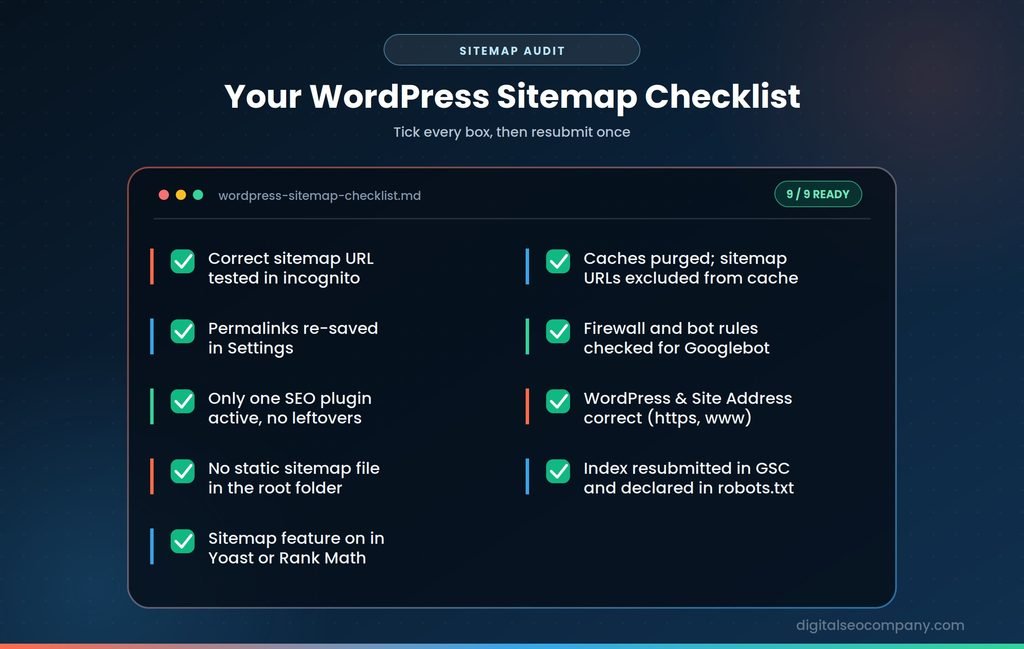
- Correct sitemap URL tested in an incognito window
- Permalinks re-saved
- Only one SEO plugin active, no leftovers
- No static
sitemap.xmlorsitemap_index.xmlin the root folder - Sitemap feature enabled in Yoast or Rank Math
- Caches purged and sitemap URLs excluded from caching
- Firewall and bot-protection rules checked
- WordPress and Site Address correct (protocol and www)
- Sitemap index resubmitted in Search Console and declared in robots.txt
Frequently Asked Questions
Why does my WordPress sitemap show a 404 error?
- Most often the rewrite rules are stale or two SEO plugins are conflicting. Re-saving permalinks under Settings → Permalinks fixes most cases; if it doesn’t, confirm only one SEO plugin is active and no static sitemap file sits in your root folder.
What’s the difference between sitemap.xml and sitemap_index.xml?
- Which one your site uses depends on the plugin. Yoast and Rank Math use
/sitemap_index.xml, All in One SEO uses/sitemap.xml, and core WordPress uses/wp-sitemap.xml. Testing the wrong one is a common false alarm.
Why does Search Console say “Couldn’t fetch” when my sitemap loads fine?
- The sitemap may load for you but not for Googlebot. Check caching layers, Cloudflare or other firewall rules, and security plugins, then resubmit.
Do I need both Yoast and Rank Math sitemaps?
- No. Run one SEO plugin only. Two active plugins generating sitemaps cause the conflicts described above.
How long after fixing a sitemap will Search Console update?
- Often a day or two, though some statuses take longer to refresh. Submitting only the sitemap index and confirming the sitemap loads as valid XML gives Google the cleanest path to re-fetch it.
Final Thought
WordPress sitemap errors look alarming in Search Console, but they’re rarely mysterious, to understand further extensively you can read our technical SEO guide also. Test the right URL, work down the short list of common causes in order, and resubmit once. If the same error keeps returning, the sitemap usually isn’t the real problem — and that’s the point where a proper diagnosis saves more time than another round of guessing. Or contact us for a free sitemap audit to find out the actual issue to solve it permanently.