
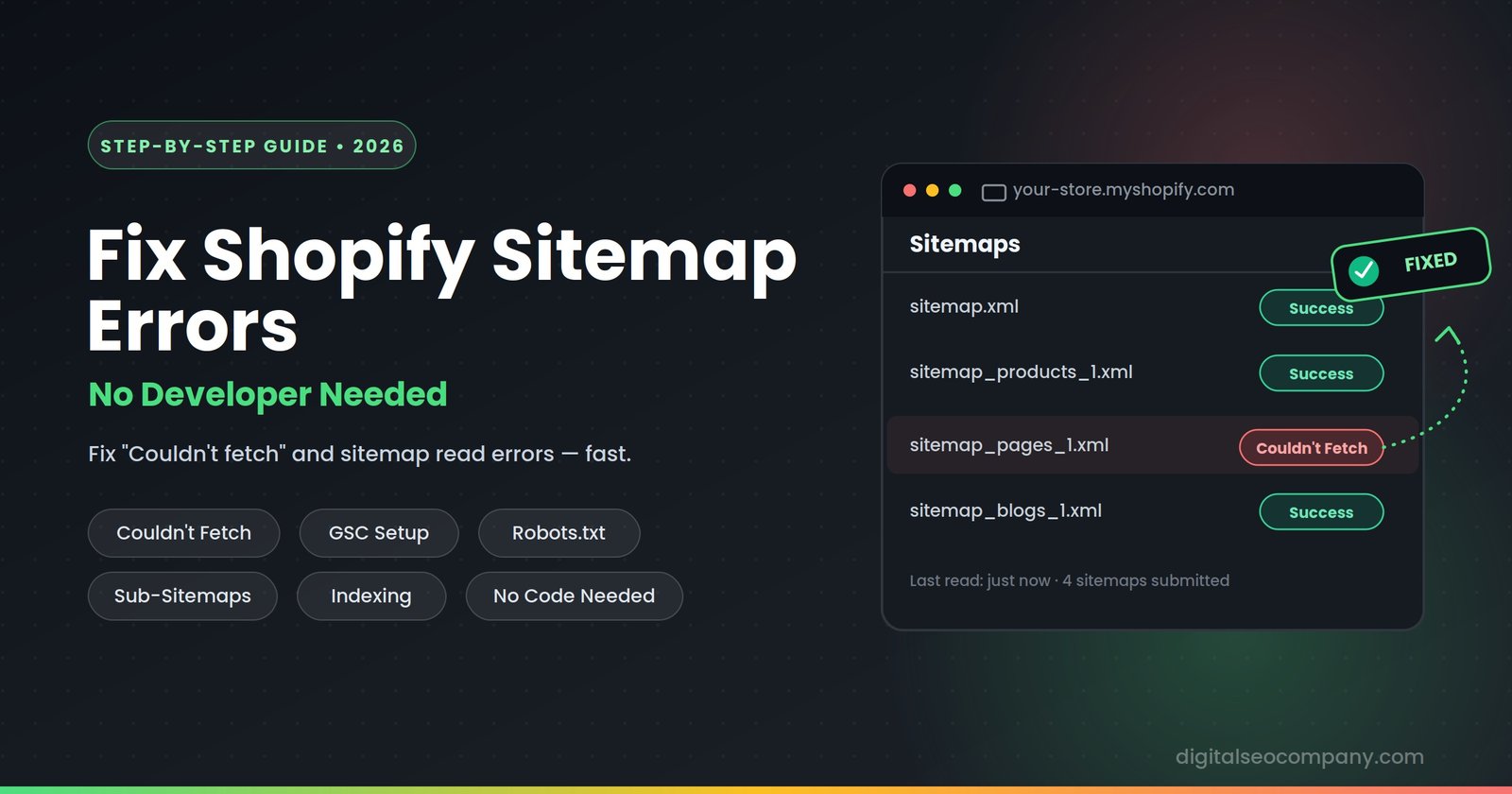
If Google Search Console is showing “Couldn’t fetch” or “Sitemap could not be read” for your Shopify store, the fix in most cases isn’t a broken file — it’s a mismatched property setup or a stale GSC cache, and it’s fixable in under 15 minutes without touching a line of code. Shopify auto-generates and auto-manages your sitemap.xml, which means you can’t directly edit it the way you would on WordPress — but that also means the error almost never comes from a malformed file. It comes from how the sitemap is being requested, cached, or blocked.
Here’s the step-by-step fix, in the order that resolves the problem fastest.
First, Know What You’re Working With
Every Shopify store has a sitemap index at yourstore.com/sitemap.xml, which points to a set of paginated sub-sitemaps Shopify generates automatically:
- sitemap_products_1.xml
- sitemap_collections_1.xml
- sitemap_pages_1.xml
- sitemap_blogs_1.xml
You cannot edit these directly — there’s no theme file to open. That’s actually good news: it means most “sitemap errors” aren’t content problems, they’re submission or configuration problems. Fix the configuration, and the error usually clears on its own.
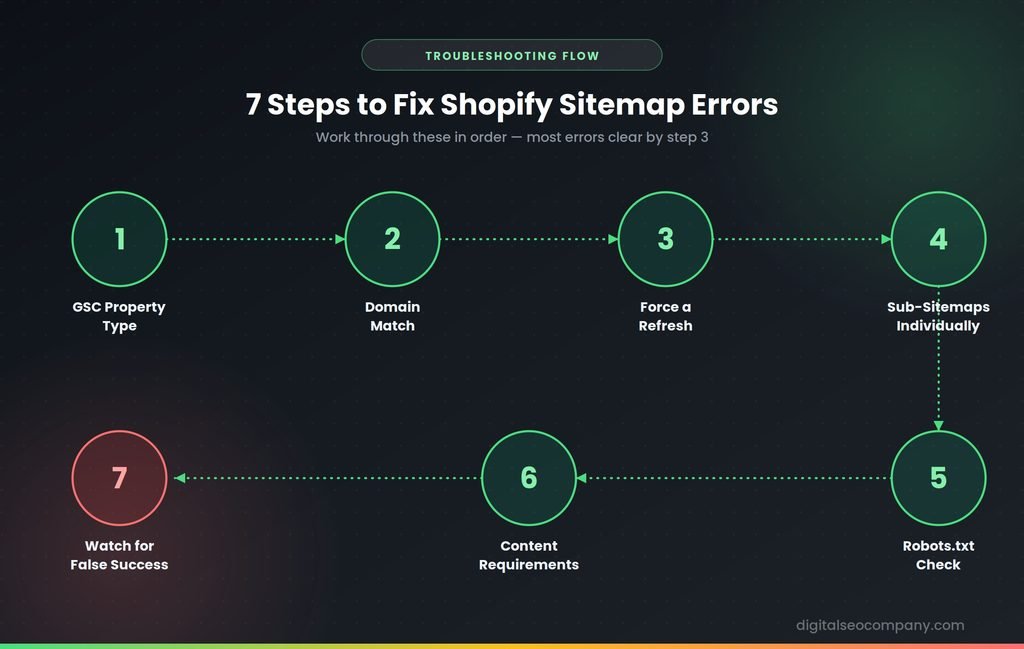
Step 1: Confirm Your GSC Property Type
Go to Google Search Console and check whether your property is set up as “Domain” or “URL prefix.” Domain-type properties (verified via DNS) handle Shopify’s sitemap structure more reliably than URL-prefix properties, and community reports consistently show this switch alone resolving persistent fetch errors. If you’re on URL prefix, add a new Domain property, verify it via your DNS provider, and resubmit your sitemap there.
Step 2: Check for a Domain Mismatch
This sounds too simple to matter, but it’s one of the most common causes: the domain in GSC has to match your live store exactly, including www vs. non-www. If your store loads at www.yourstore.com but GSC is verified for yourstore.com (or vice versa), the sitemap fetch will fail even though the file itself is perfectly fine.
Step 3: Force a Refresh (Clear the Cache)
Google caches sitemap data for roughly 24–48 hours. If you’ve made recent changes — a new app, a theme update, a bulk product import — GSC may still be reading a stale version.
- In Search Console, go to Sitemaps
- Remove your existing sitemap submission
- Wait 5–10 minutes
- Resubmit the same URL: sitemap.xml
This single step resolves the majority of “Couldn’t fetch” errors, according to troubleshooting data from Shopify-focused SEO agencies working through hundreds of stores.
Step 4: Submit Sub-Sitemaps Individually
If the main sitemap index still won’t fetch after Step 3, submit the sub-sitemaps directly instead of relying on the index file:
- sitemap_products_1.xml
- sitemap_pages_1.xml
- sitemap_collections_1.xml
- sitemap_blogs_1.xml
One specific fix reported repeatedly in the Shopify community: drop the _1 suffix when submitting — try sitemap_pages.xml instead of sitemap_pages_1.xml. Multiple store owners have confirmed this triggers a successful fetch where the numbered version failed.
Step 5: Rule Out Robots.txt Blocking
Unlike sitemap.xml, Shopify does let you edit robots.txt through robots.txt.liquid in your theme editor. If a previous developer, app, or theme customization added a Disallow rule that accidentally blocks crawler access to your sitemap paths, that alone will cause persistent fetch failures. Visit yourstore.com/robots.txt to fix robots.txt directly in your browser and confirm nothing is blocking /sitemap.xml or the sub-sitemap paths.
Step 6: Check Your Content Requirements
Shopify’s sitemap generator can behave unpredictably if a content type is completely empty — for example, if you’ve never published a single blog post, the blog sub-sitemap can fail to generate properly, sometimes affecting the whole index. Confirm you have at least one live item in each category (products, pages, collections, blog posts) and that nothing important is set to “hidden” instead of “visible” in the Shopify admin.
Step 7: Watch for the “False Success” Trap
Sometimes GSC reports your sitemap as successfully submitted — but shows 0 discovered URLs weeks later. This isn’t the same problem as a fetch error, and it usually points to one of three causes: a robots.txt block you missed in Step 5, an XML formatting issue introduced by a third-party app, or Shopify’s automatic sitemap pagination conflicting with how Google is allocating crawl budget to your store. If you’re seeing this specifically, it’s usually the point where DIY troubleshooting stops being efficient — see the note at the end of this guide.
A Related Issue: Duplicate URLs from Pagination
Even when your sitemap fetches cleanly, a separate but related problem shows up often on Shopify: paginated collection URLs (/collections/t-shirts?page=2) creating canonical chains instead of pointing cleanly back to the root collection page. Some third-party themes break Shopify’s default canonical behavior here, and Google treats canonical chains as a weak signal — sometimes ignoring them entirely, which lets duplicate paginated pages compete against each other in search results. Worth a quick check if your indexed page count seems unusually high relative to your actual catalog size.
Fixing Specific Error Messages
“Couldn’t fetch” — Start with Steps 1–4 above, in order. This is the single most common Shopify sitemap error, and the fastest to resolve.
“Sitemap could not be read” — Usually a formatting or access issue rather than a genuine XML error, since Shopify generates valid XML by default. Check Step 5 (robots.txt) first, then Step 1 (property type).
“Sitemap is HTML” error — This means Google fetched a page (often a 404 or a redirect) instead of the actual XML file, almost always caused by the domain mismatch in Step 2 or an incorrect sitemap URL being submitted.
0 discovered URLs despite “Success” status — See Step 7 above.
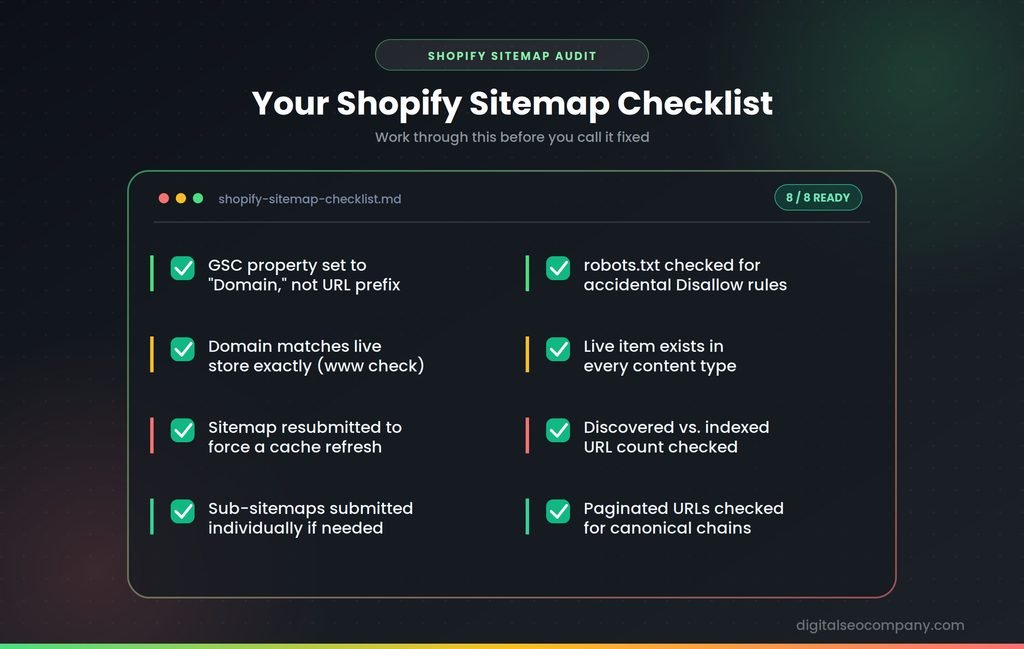
Shopify Sitemap Troubleshooting Checklist
- GSC property set to “Domain,” not “URL prefix”
- Domain matches live store exactly (www vs. non-www)
- Sitemap removed and resubmitted in the last 10 minutes to force a cache refresh
- Sub-sitemaps submitted individually if the index still fails
- robots.txt checked directly in-browser for accidental Disallow rules
- At least one live item exists in every content type (products, pages, collections, blog)
- Discovered-vs-indexed URL count checked, not just fetch status
- Paginated collection URLs checked for canonical chain issues
When It’s Time to Stop Troubleshooting Solo
Fetch errors don’t always mean Google can’t find your pages at all — it can discover URLs through other paths, like internal links, even with a broken sitemap. So the real test isn’t whether the error disappears; it’s whether your pages are actually getting indexed. Check that with a site:yourstore.com search or the Coverage report in GSC, not just the sitemap status.
If you’ve worked through every step here and you’re still seeing the “false success” pattern, a persistent fetch error after a full week, or a large gap between discovered and indexed URLs, that combination usually points to something deeper — a crawl budget issue, an app conflict, or a structural canonicalization problem that needs a full technical audit rather than another round of resubmitting. That’s exactly the kind of diagnostic work a proper sitemap and crawlability audit is built to catch.
FAQ
Why does my Shopify sitemap say “couldn’t fetch”?
- Most often it’s a GSC property type mismatch (URL prefix vs. Domain), a domain/www mismatch, or a stale cache — not a broken file, since Shopify generates valid XML automatically.
Can I edit my Shopify sitemap.xml directly?
- No. Shopify auto-generates and fully manages sitemap.xml — there’s no theme file to edit. You can, however, edit robots.txt via robots.txt.liquid, which is often where the real problem hides.
How long does it take for Shopify sitemap changes to show in Google?
- Typically 3–7 days for Google to fully process a sitemap. Persistent errors beyond that window usually indicate a configuration issue, not a normal delay.
Does a sitemap fetch error mean my pages aren’t indexed?
- Not necessarily. Google can discover pages through internal links even when sitemap fetching fails. Always verify actual indexing issues status via the Coverage report or a site: search rather than relying on sitemap status alone.
Final Thought
Shopify’s automatic sitemap handling removes the manual-editing headaches other platforms have — but it also means the fixes live in configuration, not code. Work through the steps above in order, and most “Couldn’t fetch” and “Sitemap could not be read” errors clear within a day. If they don’t, that’s usually a sign of a deeper crawlability issue worth having audited properly rather than guessed at. To do Shopify sitemap troubleshooting contact us right now, we’re offering a free sitemap audit for you.